
AI in NabatDesk: Inbox Copilot for Multi-Channel Support
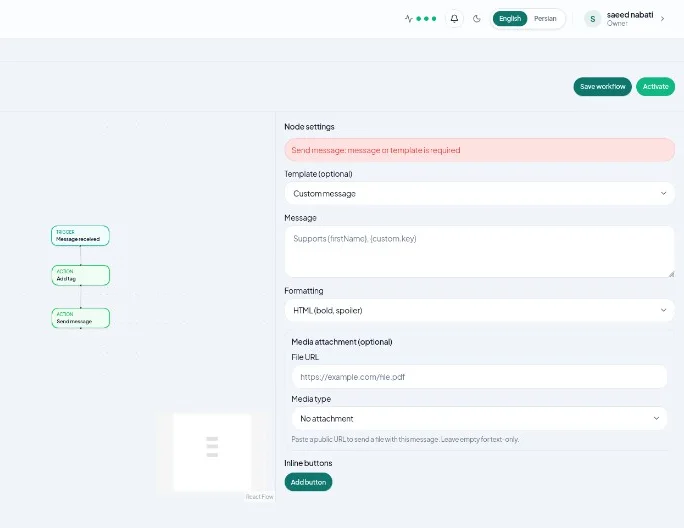
AI in NabatDesk helps your team draft faster replies, summarize long threads, and ground answers in your own knowledge—without handing the conversation to an unsupervised bot.
This guide explains what AI does today, how to turn it on, how agents use Inbox Copilot, and how to combine AI with automations across Telegram, WhatsApp, Instagram, and website chat.
What AI means in NabatDesk
NabatDesk AI is built for assisted support, not fully autonomous blasting:
- Inbox Copilot — suggest a reply, summarize a thread, classify intent, or translate
- AI Knowledge — FAQ text and uploaded files that Copilot can retrieve when drafting
- Human approvals — drafts can require Approve & send before anything goes out
- Automation action: AI generate reply — creates a draft (and approval) that you can send in a later step
AI does not replace rules and flows. Most teams still start with acknowledgments and routing, then add AI for open-ended questions.
What AI does not do (today)
Be clear with your team:
- Inbox Copilot does not auto-send. It drafts; a human inserts or approves.
- The automation AI generate reply step drafts and can create a pending approval—it does not send by itself.
- Unattended “bot answers every Telegram message from the knowledge base” is not a live default runtime path.
- AI features require a plan that allows AI (Starter and above—not Free) and an org toggle to enable Copilot.
- You choose managed models or bring your own key (BYOK); usage and credentials are your responsibility to monitor.
Channels that work with AI
The same Copilot foundation uses the contact’s channel:
- Telegram bot
- Telegram account
- Website widget
Keep channel limits in mind (for example Instagram without inline buttons, website visitor chat text-first). AI drafts should stay short and on-brand.
Step 1 — Enable AI for your organization
- Sign in as Owner or Admin.
- Open Chatbot → AI.
- Enable Inbox Copilot.
- Choose a model path:
- Managed — curated models via NabatDesk’s managed provider
- BYOK — your own OpenAI, Anthropic, Gemini, or xAI key where supported
- Optionally set max tokens, temperature, and a short system prompt that matches your brand voice.
- If you are on Free, upgrade under Settings → Billing first.
Step 2 — Add AI Knowledge
- Stay on Chatbot → AI.
- Add text sources for FAQs (hours, shipping, pricing policy, product basics).
- Upload supporting files when your plan and key path allow (common formats such as PDF, DOCX, TXT).
- Use the retrieve/test tools in the page to confirm relevant chunks return for sample questions.
Start with 10–20 high-quality answers. Noise in the knowledge base creates noisy drafts.
Step 3 — Use Copilot in Inbox
- Open a conversation in Inbox (any supported channel).
- Use Copilot actions such as:
- Suggest reply
- Summarize
- Classify intent
- Translate
- Review the draft. Edit anything that is wrong or too long.
- Insert into the composer, or Request approval when your process requires a second pair of eyes.
- Send only after a human confirms.
This keeps AI fast for agents while protecting customers from bad automatic sends.
Step 4 — Optional: AI inside automations
When rules are stable:
- Automations → New.
- Scope to the right channel (and website widget when relevant).
- Add AI generate reply with clear instructions (and knowledge retrieval when useful).
- Follow with a Send message step that uses the generated text (for example
{{ai.text}}) only after your approval policy is clear. - Activate on a narrow category first (FAQ-like topics), not refunds or complaints.
If your playbook already covers Instagram or Telegram automation, add AI last: Instagram automation · Telegram automation.
Practical rollout
Phase 1 — Assist agents
Enable Copilot + a small knowledge base. Measure edit rate and time-to-first-reply.
Phase 2 — Tighten quality
Expand FAQs, tighten the system prompt, require approval on sensitive tags.
Phase 3 — Selective automation
Use AI generate reply for a few high-volume, low-risk intents. Keep human handoff obvious.
Common mistakes
- Expecting AI to auto-send everything
- Enabling AI before Inbox ownership and SLAs are clear
- Dumping unstructured documents into Knowledge without review
- Piloting AI on complaints and edge cases first
- Confusing keyword chatbot rules with Copilot (both can coexist; they solve different jobs)
Related guides
- How to integrate the website widget
- Telegram automation for business
- Instagram automation for business
- Docs · Pricing
FAQ
Do I need AI to use NabatDesk?
No. Shared Inbox, bots, and rule-based automations work without AI. AI is an acceleration layer.
Does Copilot send messages automatically?
No. Copilot drafts. Sending still requires a human action (and optionally an approval).
Which channels support AI?
Telegram (bot and account), WhatsApp, Instagram, and website chat threads in Inbox.
What is the difference between managed AI and BYOK?
Managed uses NabatDesk’s curated model catalog. BYOK uses your own provider API key and models your organization configures.
Will AI replace my Website Support or Telegram bot?
No. Bots, keyword rules, and automations remain. AI helps draft and (with approvals) accelerate replies inside those workflows.
Final takeaway
Use AI in NabatDesk to shorten agent work: enable Copilot, ground it in a clean knowledge base, keep humans in the send path, and only then automate narrow AI steps.
Draft faster across every channel with NabatDesk AI. Start free.