
How to Integrate the NabatDesk Website Widget
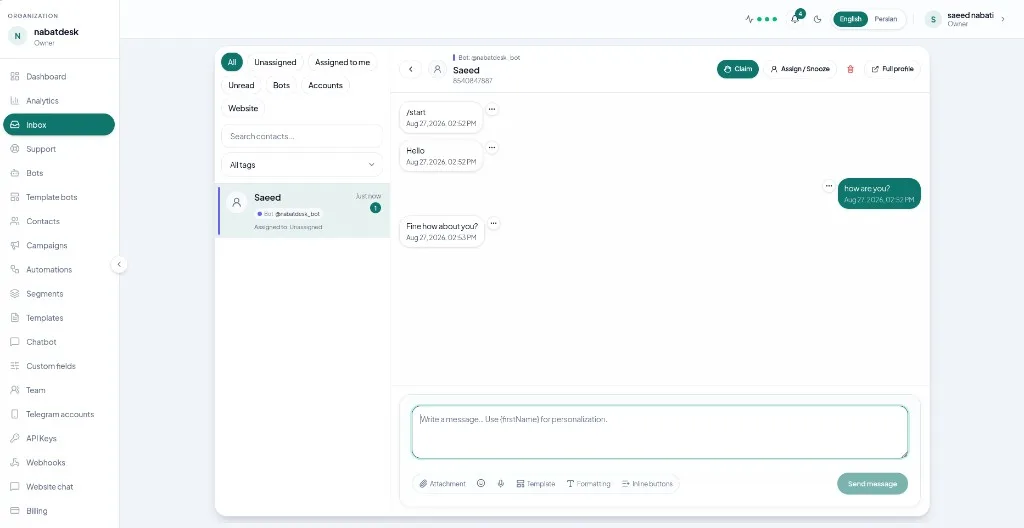
The NabatDesk website widget adds a chat bubble to your site so visitors can message your team without leaving the page. Conversations land in the same Inbox as Telegram, WhatsApp, and Instagram—so one team can answer every channel.
This guide shows how to create a widget, embed the script, verify Inbox delivery, and optionally add automation or Telegram reply bridging.
What you need
- A NabatDesk workspace on a plan that includes website widgets
- Owner or Admin access
- The Website Support bot / bot instance set up in your workspace (Marketplace Telegram Website Support Bot, or your Website Support bot instance)
- Your website (or a staging page) where you can paste a script before
</body> - Exact HTTPS origins you will allow (for example
https://www.example.com)
Step 1 — Open Website chat settings
- Sign in to NabatDesk as Owner or Admin.
- Open your Website Support bot instance settings.
- Go to the Website chat section (
#website-chat).
You can also start from Settings → Connections → Website chat, which routes to the same settings page.
Step 2 — Create a widget
- Choose Create widget.
- Set a clear name (for example “Marketing site” or “Help center”).
- Add allowed origins — exact origins that may load the widget (scheme + host, and port if non-default). Example:
https://www.example.com. - Write a short greeting visitors see when they open the bubble.
- Save.
NabatDesk generates a public widget id and an embed snippet for you.
Step 3 — Paste the embed snippet
Copy the snippet from the widget card. It looks like this:
<script
  async
  src="https://nabatdesk.com/widget.js"
  data-widget-id="YOUR_PUBLIC_WIDGET_ID"
  data-api-base="https://api.nabatdesk.com/api/v1"
></script>
Paste it before the closing </body> tag on every page where the bubble should appear (or in your CMS “footer scripts” / tag manager equivalent).
Notes:
- Use the exact snippet from your workspace —
srcanddata-api-basematch your NabatDesk environment. - Optional: set
data-lang/ locale toenorfawhen you want to force UI language (RTL is applied for Persian). - The bubble uses NabatDesk branding (fixed look). There is no full custom theme builder in this release.
Step 4 — Match origins and test
- Confirm the page URL origin is listed under allowed origins.
- Open the page in a private window.
- Open the chat bubble and send a short test message.
- In NabatDesk, open Inbox and filter Website.
- Confirm the thread appears, then reply from the composer.
If the bubble does not load, check the browser console for blocked scripts, wrong origin, or an outdated snippet.
Step 5 — Optional: first automation
Once DMs work:
- Go to Automations → New.
- Scope to Website and select your widget.
- Trigger on the first visitor message.
- Add Send message with a short acknowledgment.
- Optionally Add tag (for example
web-lead). - Activate and retest from the site.
Keep the first automation text-only. Visitor chat in the public widget is text-first.
Step 6 — Optional: reply from Telegram
If your Website Support bot is connected, you can enable Reply from Telegram (bridge) so linked owners/admins get notified in Telegram and can reply from a Telegram DM. Configure this under the same Website chat settings after the widget is live.
Tips for a clean launch
- Start on staging with a staging origin, then add production origins.
- Keep the greeting short and set response-time expectations.
- Use one widget per major site or brand surface when your plan allows multiple widgets.
- Train agents to filter Website in Inbox during the first week.
- Pair the widget with your Instagram and Telegram playbooks when you run multi-channel support.
Related guides
FAQ
Where do website messages appear?
In the shared NabatDesk Inbox, under the Website channel filter, as contacts on the website channel.
Can I customize colors and logo?
The current widget ships with NabatDesk branding. You can configure name, greeting, locales, and allowed origins—not a full custom theme builder.
Does the widget support file uploads from visitors?
Visitor chat is text-first in the public widget path. Prefer asking visitors to share links or continue sensitive media over other channels when needed.
Can AI help with website chats?
Yes. Inbox Copilot can draft replies on website threads, and automations can be scoped to a website widget—same pattern as other channels.
Final takeaway
Integrating the website widget is three core steps: create the widget with the right origins, paste the script, and prove a round-trip in Inbox. After that, add automation and optional Telegram bridging when your team is ready.
Add website chat to your site with NabatDesk. Start free.